
Understand · Free and premium
Use Daily Summary, Nutrition Insights, and Wellness Score
Turn logged meals into a Wellness Score, educational daily patterns, nutrient observations, and suggested actions.
Before you start
Profile → Daily Summary, or AI → Wellness Score
Have ready
- A reasonably complete day of food logging
Step by step
Walkthrough
- 01
Open the summary
Use the Profile daily-summary card or Wellness Score in AI after logging meals.
- 02
Review the evidence
Read calorie and macro balance, nutrient gaps, meal timing, and any linked activity context.
- 03
Open supporting details
Tap cards or information controls to see how the app derived an observation and which logged foods contributed.
- 04
Treat suggestions as educational
Use insights to notice patterns, not as a diagnosis or a guarantee of health outcomes.
What you will see
These screens show the current app layout. Platform-specific labels and controls are noted below.
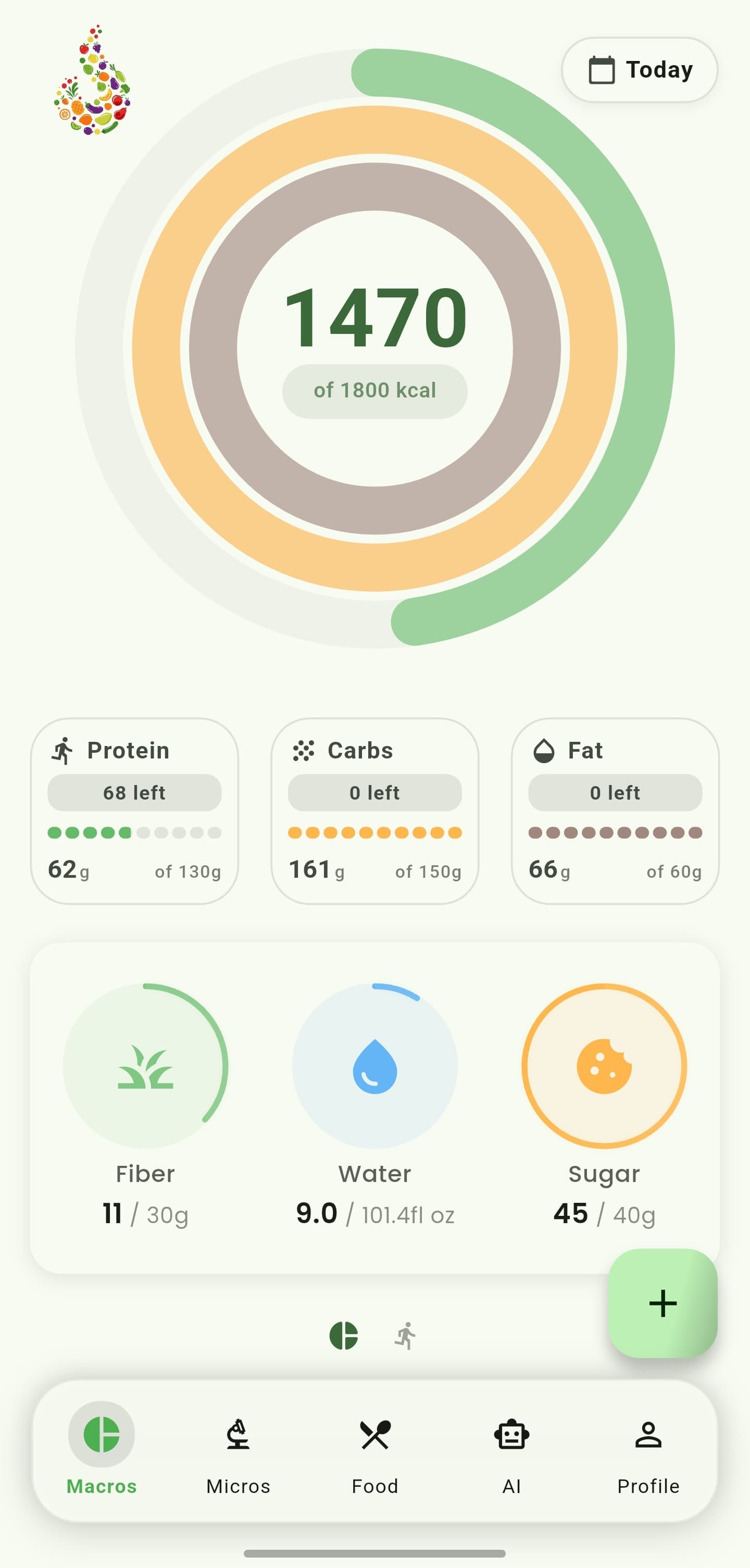
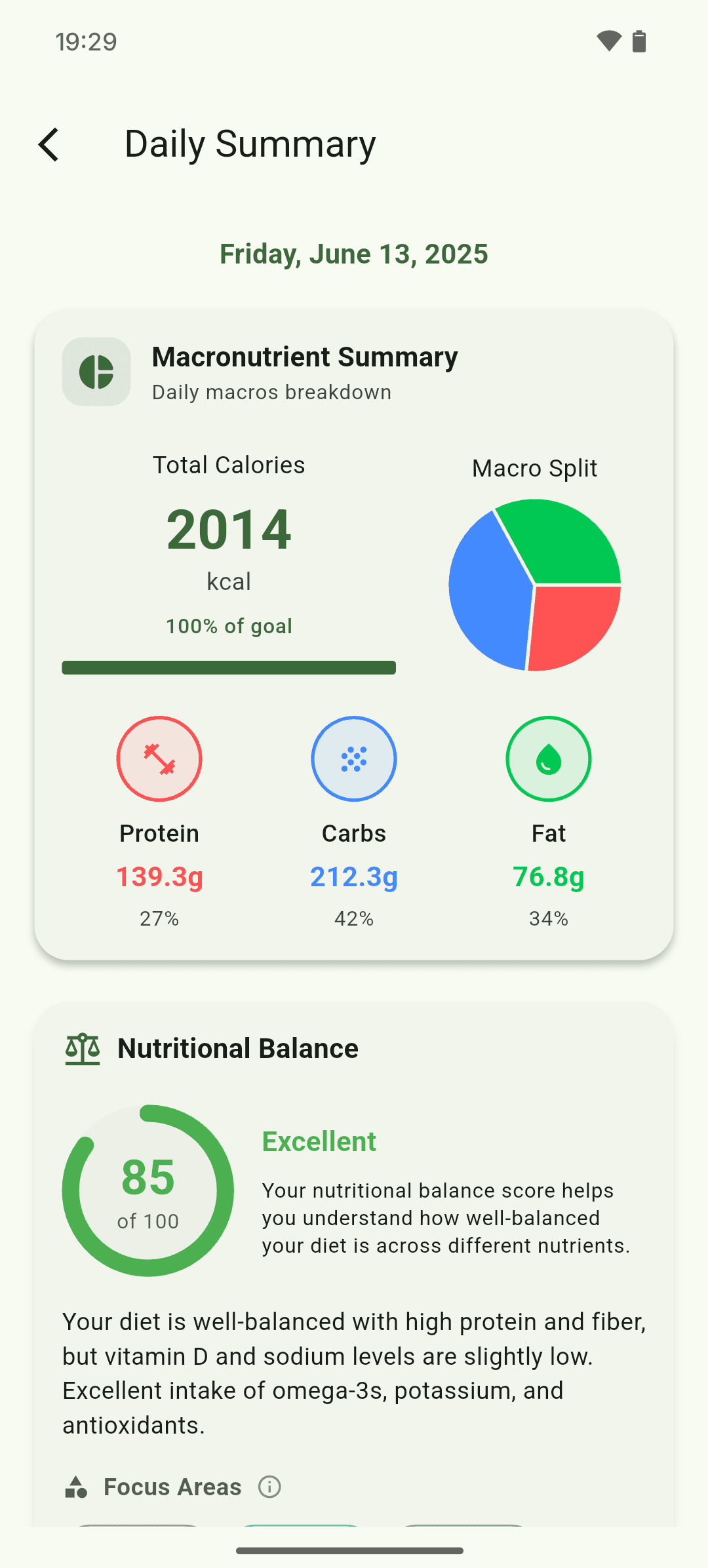
iOS and Android
iOS
- More complete logging usually produces more useful pattern summaries.
Android
- More complete logging usually produces more useful pattern summaries.
If something looks wrong
- If the summary is sparse, log the rest of the day and check again.
- Review connected-health permissions if activity context is missing.
Keep learning
Still need a hand?
Tell us which step you reached and what you expected to happen. We will help you find the next move.
Contact support