
Plan · Free and premium
Manage your pantry and use Pantry Chef
Add ingredients manually or by scan, review possible duplicates, build a shopping list, and generate meal ideas.
Before you start
Profile → Pantry, or AI → Pantry Chef
Have ready
- Saved food preferences for personalized recipes
Step by step
Walkthrough
- 01
Stock the pantry
Add an item manually, photograph groceries or a pantry shelf, or use the receipt capture entry point.
- 02
Review detected items
Correct names, quantities, and units. Resolve possible duplicate matches before saving.
- 03
Maintain availability
Update or remove items as you use them and add missing ingredients to the shopping list.
- 04
Open Pantry Chef
Generate recipe ideas from available ingredients and review required extras, nutrition, and preferences before choosing one.
- 05
Compare pantry coverage
In Recipe Explorer, use the pantry-coverage indicator to compare ingredients you already have with ingredients still needed.
What you will see
These screens show the current app layout. Platform-specific labels and controls are noted below.
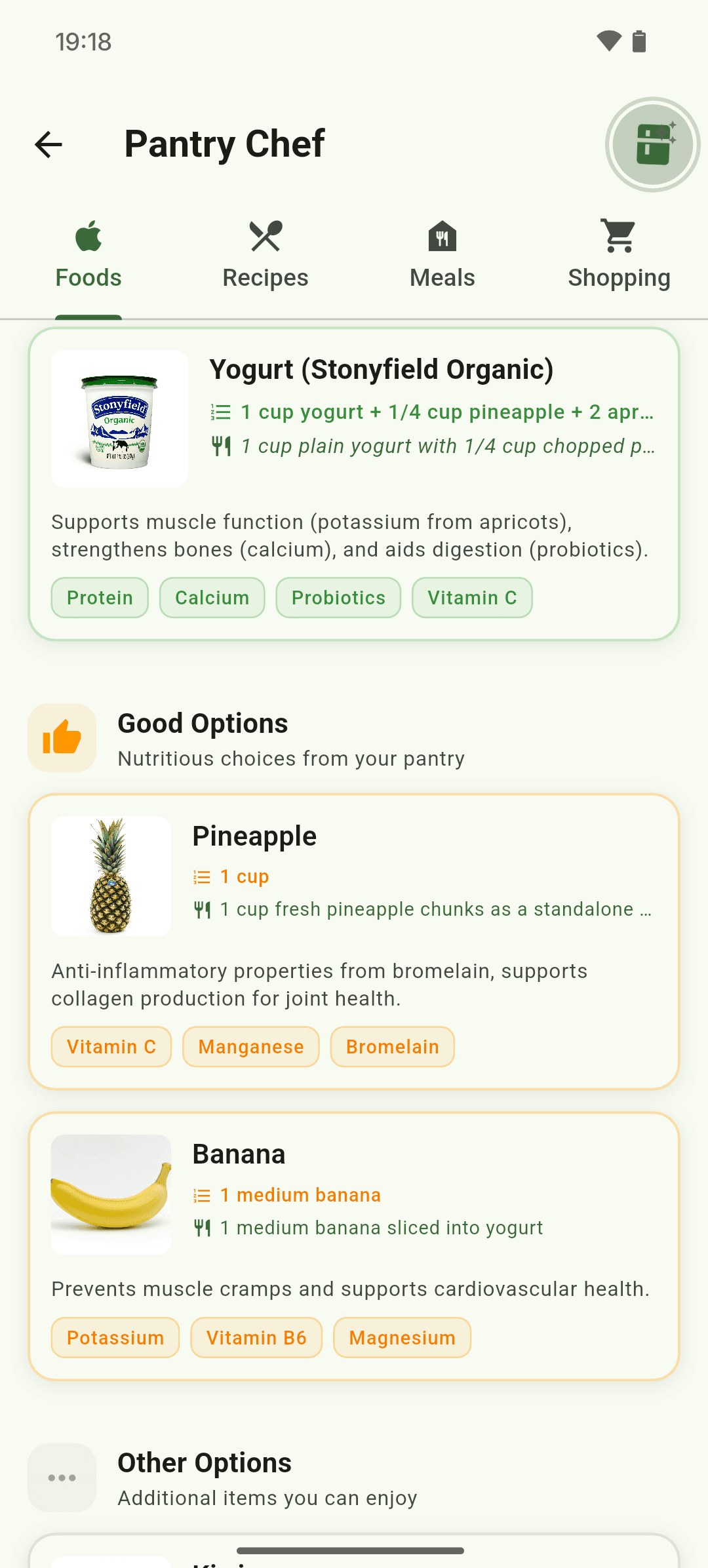
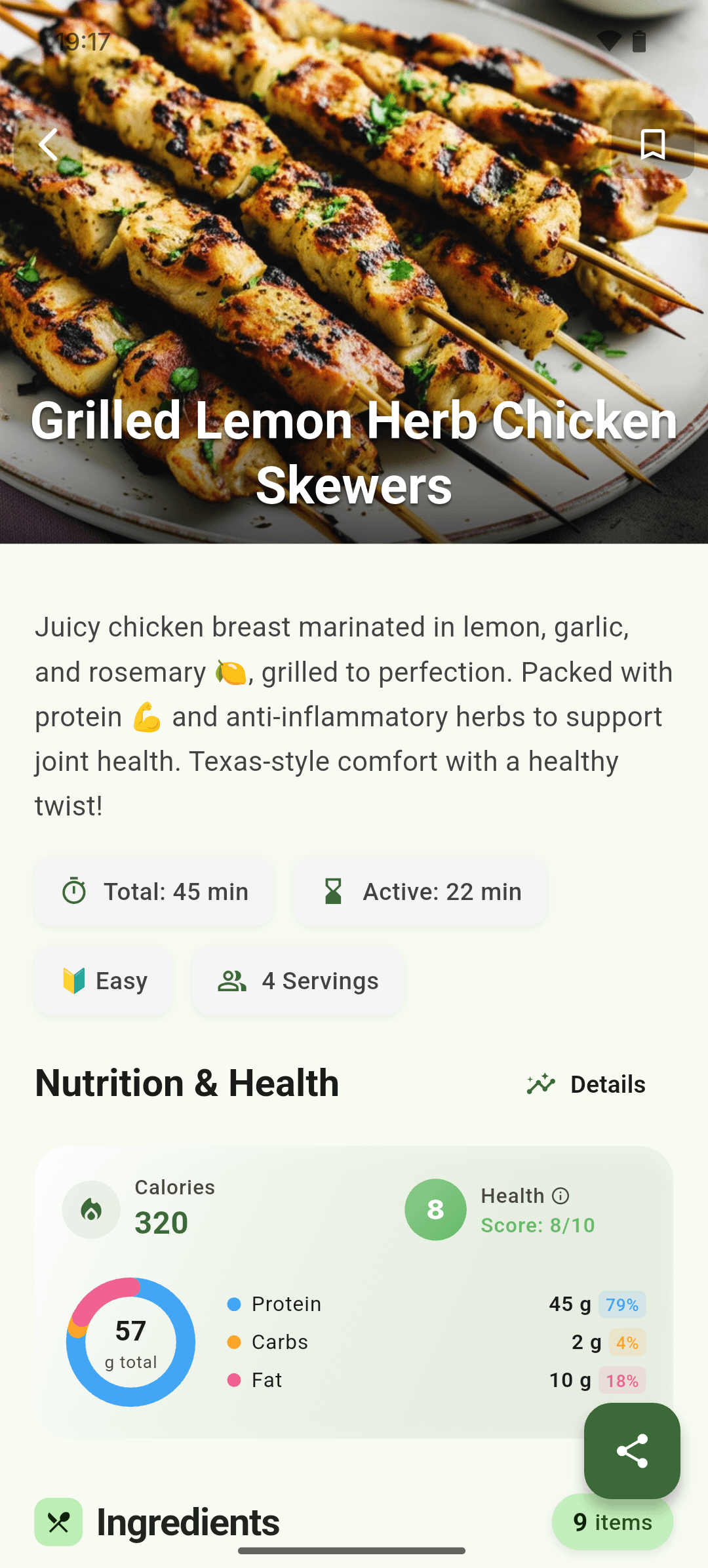
iOS and Android
iOS
- Shelf and receipt scans are estimates; review every detected item before saving.
Android
- Shelf and receipt scans are estimates; review every detected item before saving.
If something looks wrong
- Use a well-lit, straight photo with item labels visible.
- Resolve ambiguous duplicates instead of saving both entries.
Keep learning
Still need a hand?
Tell us which step you reached and what you expected to happen. We will help you find the next move.
Contact support