
Log · Free and premium
Use Can I Eat? for a food check
Check how a food fits your saved preferences, goals, and current day before deciding.
Before you start
AI → Can I Eat? or Camera → More modes → Can I Eat?
Have ready
- Current dietary preferences and goals
- Internet access
Step by step
Walkthrough
- 01
Open Can I Eat?
Choose the tool from AI or select its camera mode from the advanced camera sheet.
- 02
Describe or photograph the food
Provide the food you are considering and enough context to identify ingredients and serving.
- 03
Review the reasoning
Read how the food relates to your saved restrictions, goals, and logged day. Check any uncertainty or caution shown.
- 04
Verify important restrictions
Use the package label, restaurant, or a qualified professional for allergy, medical, or cross-contact decisions.
What you will see
These screens show the current app layout. Platform-specific labels and controls are noted below.
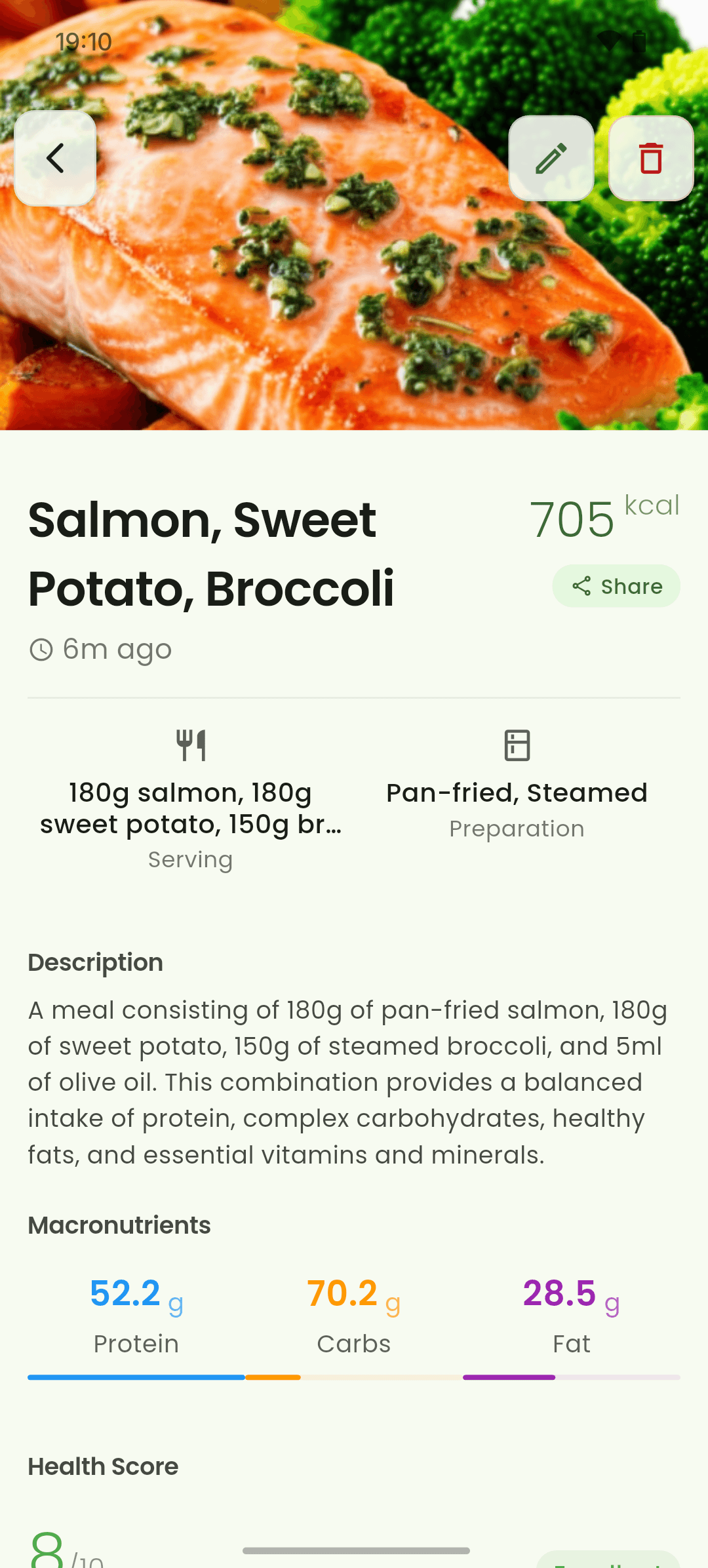
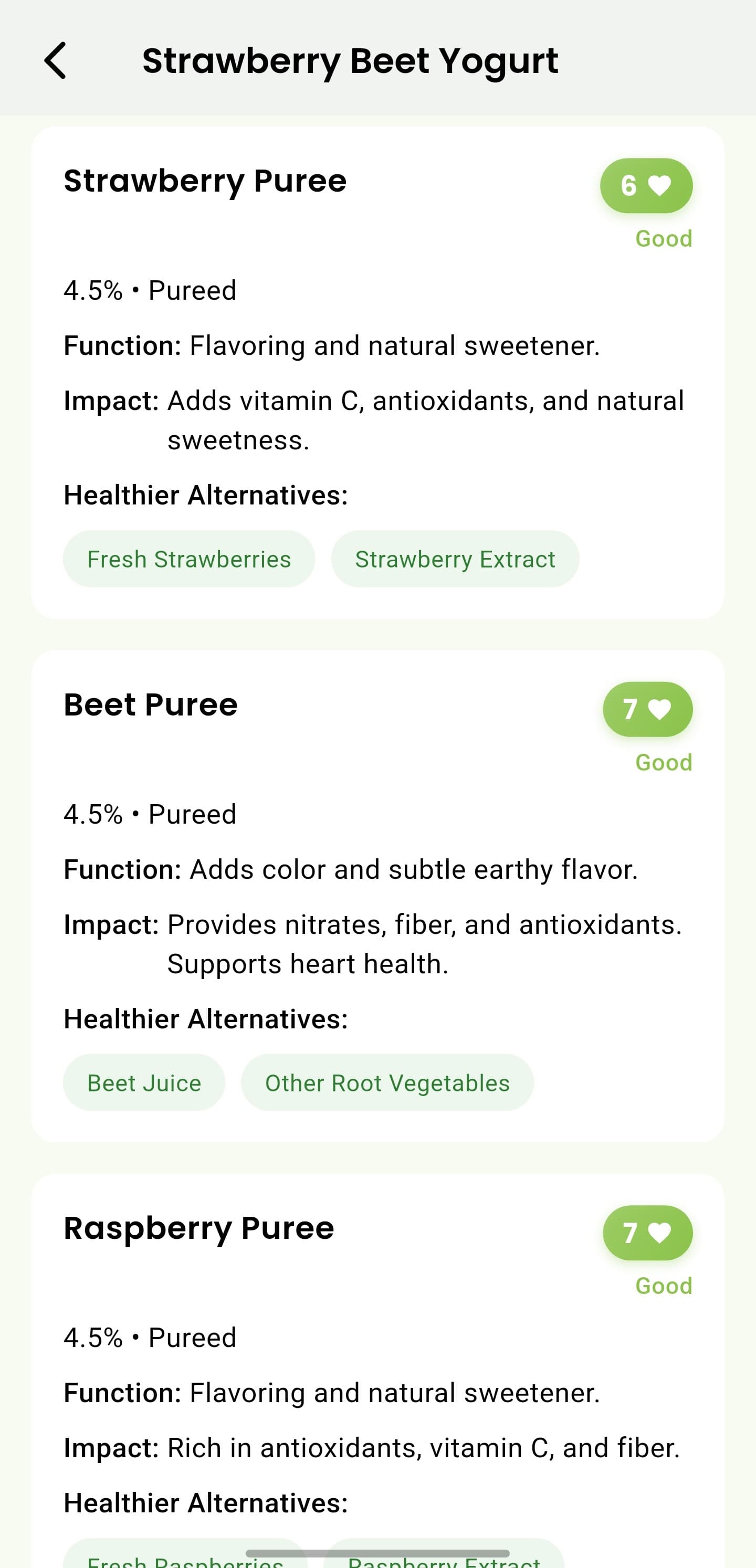
iOS and Android
iOS
- This tool provides educational guidance and is not an allergy guarantee or medical advice.
Android
- This tool provides educational guidance and is not an allergy guarantee or medical advice.
If something looks wrong
- Update dietary preferences if the result is missing an important restriction.
- Try a label image or a more specific description when the food is ambiguous.
Keep learning
Still need a hand?
Tell us which step you reached and what you expected to happen. We will help you find the next move.
Contact support