
Start · Free and premium
Set goals, health metrics, and food preferences
Keep calorie targets, macros, measurements, dietary needs, cuisines, and exercise preferences current.
Before you start
Profile → Settings or the relevant preference card
Have ready
- A completed CalorieGram profile
Step by step
Walkthrough
- 01
Open the preference you want to change
From Profile, open health metrics, dietary preferences, cuisine preferences, exercise preferences, or custom macros.
- 02
Update the source values
Change only values you know. Mark allergies and dietary restrictions carefully because they shape food and recipe suggestions.
- 03
Review calculated targets
Check the calorie and macro targets shown after saving. Use Custom Macros when you intentionally want to override the suggested split.
- 04
Refresh recommendations
Return to AI after a preference change so new suggestions use the updated profile.
What you will see
These screens show the current app layout. Platform-specific labels and controls are noted below.
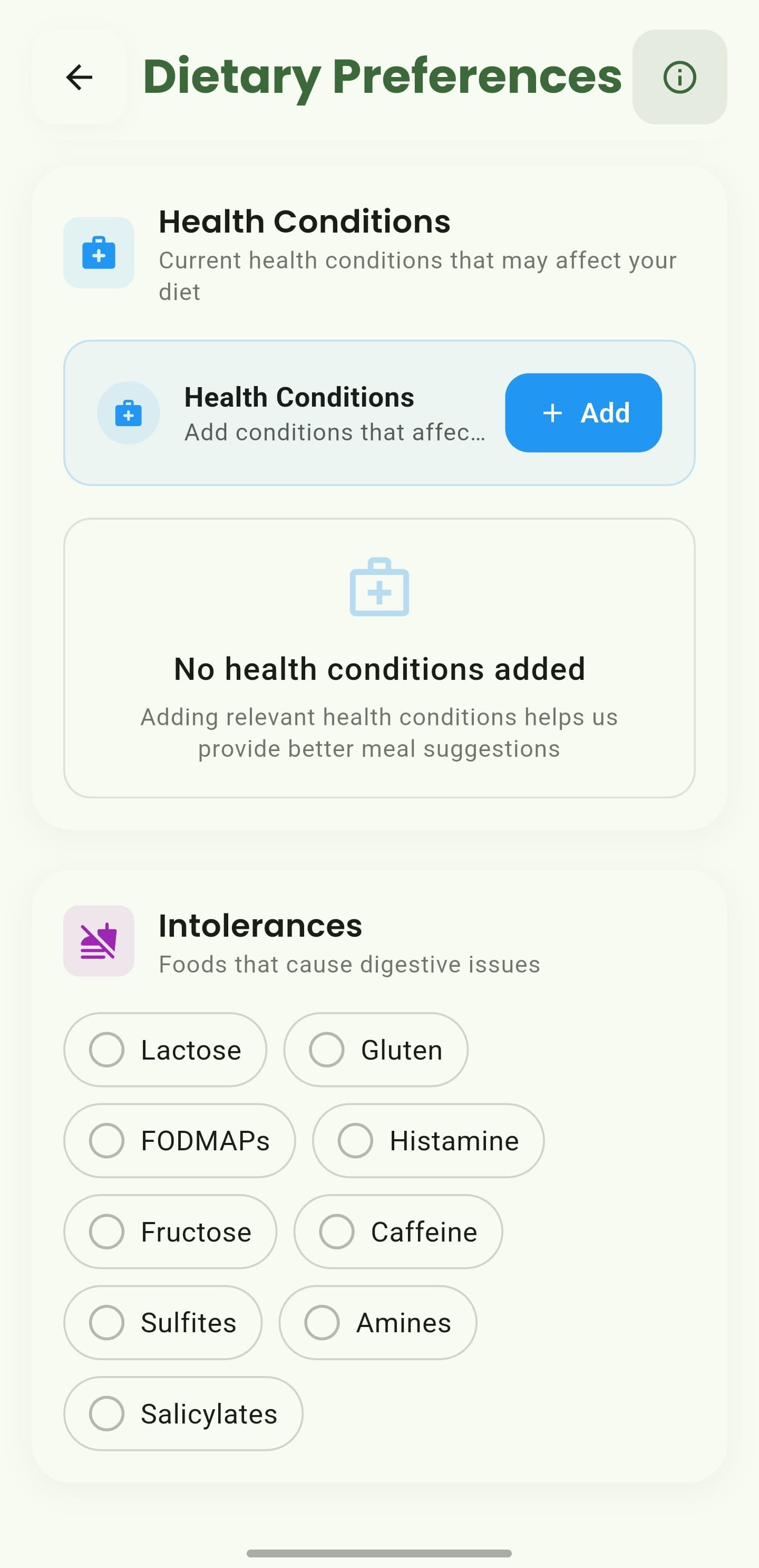
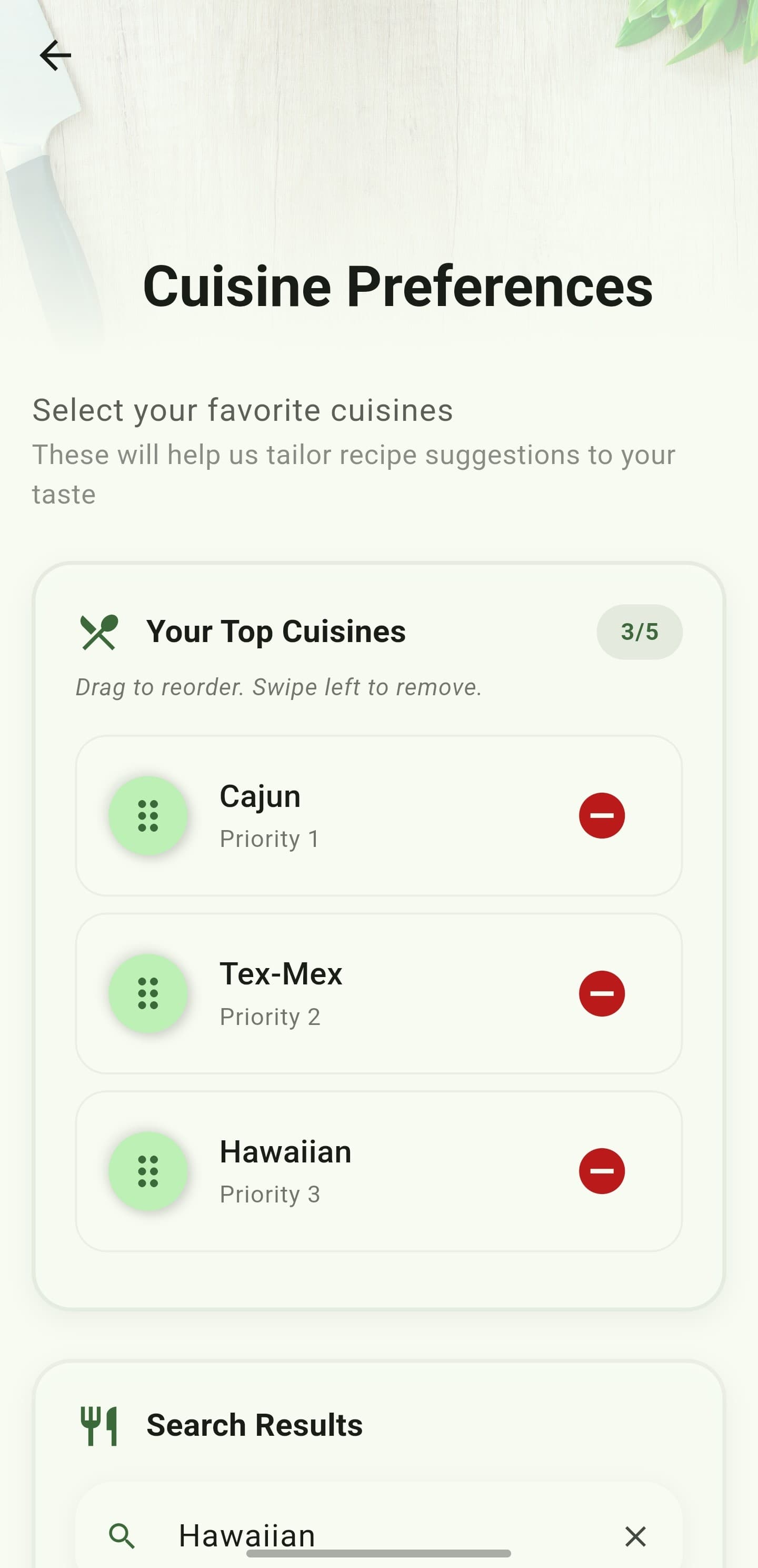
iOS and Android
iOS
- Units and available device-health data can vary with your platform and regional settings.
Android
- Units and available device-health data can vary with your platform and regional settings.
If something looks wrong
- If recommendations still look stale, close and reopen the AI tab after saving.
- CalorieGram provides general wellness estimates, not medical targets.
Keep learning
Still need a hand?
Tell us which step you reached and what you expected to happen. We will help you find the next move.
Contact support