
Start · Free and premium
Get started and find your way around
Create your profile, finish setup, and learn the five main areas of CalorieGram.
Before you start
Open CalorieGram and follow the welcome flow
Have ready
- A working email address
- Internet access for account creation
Step by step
Walkthrough
- 01
Create your account
Open CalorieGram, choose the sign-up option, enter your email and password, and verify your account when asked.
- 02
Tell CalorieGram about your goals
Complete the guided setup for your health metrics, goal, activity, and food preferences. Review every value before continuing.
- 03
Learn the five tabs
Use Macros and Micros for nutrient progress, Food for your diary, AI for planning tools, and Profile for trends, groups, and settings.
- 04
Make your first entry
Open Food and use the add control to choose photo, voice, barcode, search, or another logging method.
What you will see
These screens show the current app layout. Platform-specific labels and controls are noted below.
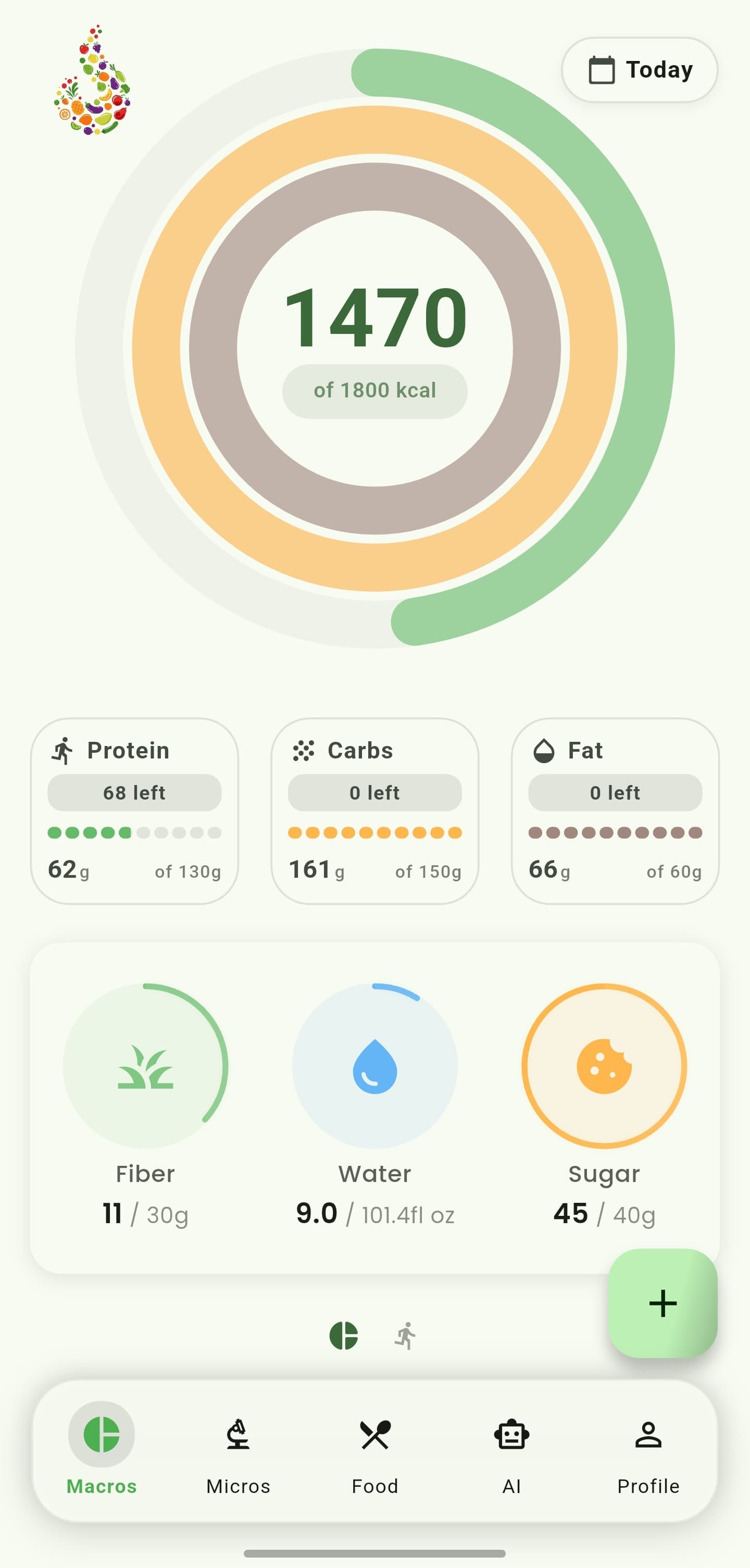
iOS and Android
iOS
- The five main tabs use the same names on iOS and Android.
Android
- The five main tabs use the same names on iOS and Android.
If something looks wrong
- If setup reappears, confirm you are signed into the same account and reconnect to the internet.
- You can update most setup answers later from Profile and Settings.
Keep learning
Still need a hand?
Tell us which step you reached and what you expected to happen. We will help you find the next move.
Contact support