
Start · Free and premium
Understand subscriptions, sync, and offline use
Know what requires a connection, how account sync works, and where purchases are managed.
Before you start
Profile → Settings → Subscription
Have ready
- An App Store or Google Play account for purchases
Step by step
Walkthrough
- 01
Review the current offer
Open Subscription and read the price, billing period, eligibility, and renewal terms shown before confirming.
- 02
Use the same CalorieGram account
Sign into the same account on another device to sync meals, goals, and settings after the device reconnects.
- 03
Restore when needed
If an active purchase is not recognized, use the restore option and confirm the device is signed into the store account that purchased it.
- 04
Manage renewal in the store
Cancel or change renewal through Apple subscriptions on iOS or Google Play subscriptions on Android.
What you will see
These screens show the current app layout. Platform-specific labels and controls are noted below.
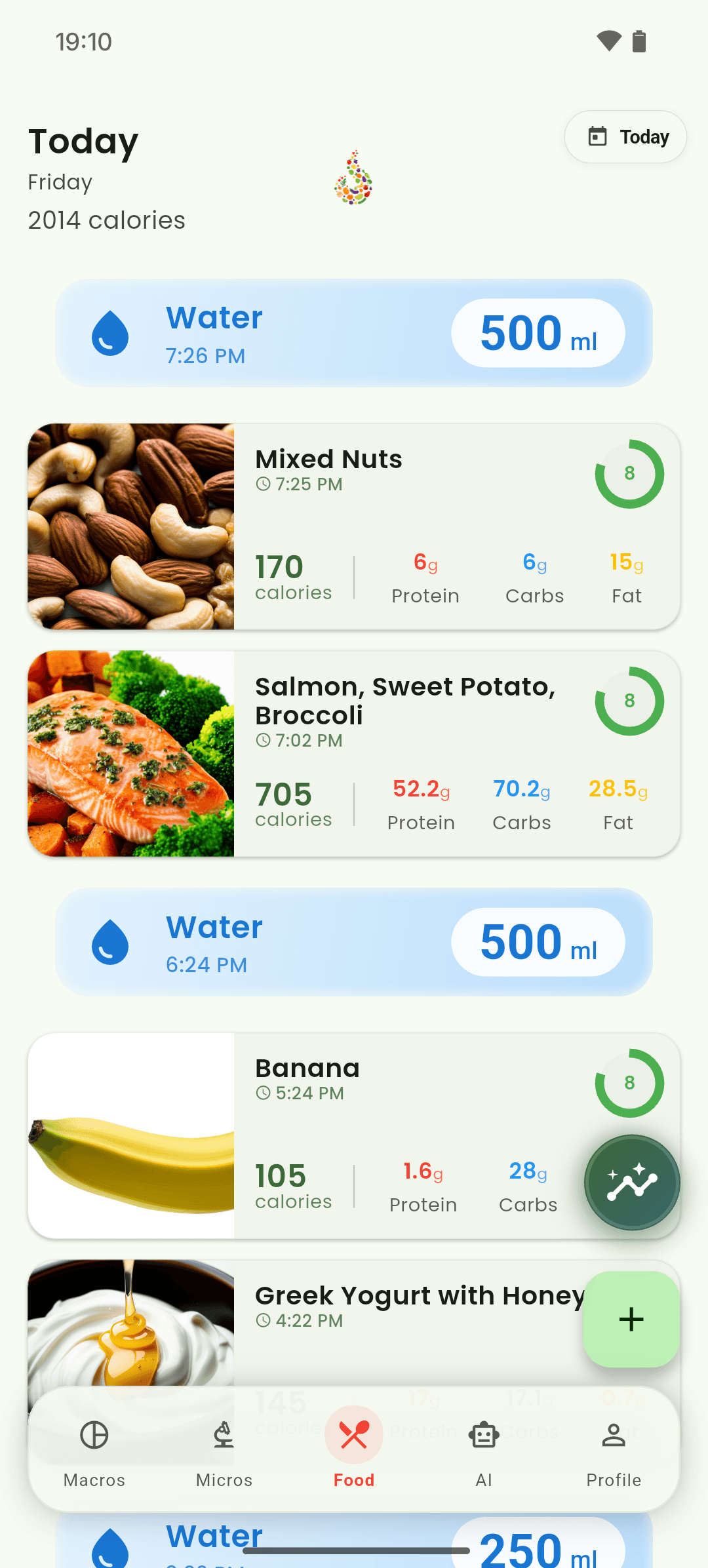
iOS and Android
iOS
- Manage billing in Apple ID subscription settings.
Android
- Manage billing in Google Play subscription settings.
If something looks wrong
- AI analysis, barcode lookup, and cross-device sync need internet access.
- Canceling a subscription does not delete your CalorieGram account.
Keep learning
Still need a hand?
Tell us which step you reached and what you expected to happen. We will help you find the next move.
Contact support